
Creating a waypoint
A waypoint is a pin you can drop anywhere on the map, not just on marked objectives. Drop one to remember a place and how to get back to it.
Dropping a waypoint
- Line up the red dot Move the map until the red dot in the middle of your screen is over the spot where you'd like your waypoint.
- Add a waypoint Tap the plus button in the bottom right and select Add a waypoint. The pin drops on the red dot.
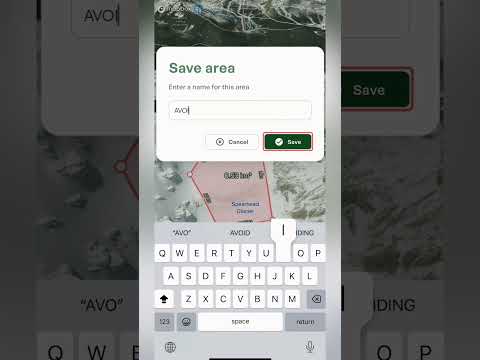
- Name it Outmap names the waypoint after the closest town to start with. To change the name, tap Save and type in the name you'd like.
What you see straight away
- Elevation and "to you" Under the name is the waypoint's elevation, and a "to you" bar showing the height difference, the distance and the bearing from where you're standing. The T next to the bearing means true north. Best for: a quick sense of how far away a spot is in distance and elevation.
- Details tab The exact coordinates, with a copy icon to copy them in one tap. Underneath are the local time and timezone, the elevation, the nearest town and a button to open the spot in another maps app, plus sunrise and sunset, first and last light and the moon. Best for: sending a precise location to a friend, or pasting it into another app.
- Weather tab A forecast for that exact spot on the map, with an hour-by-hour forecast and a day-by-day forecast for the next 16 days.
Making it yours
Once it's saved, a Content tab appears alongside Details and Weather.
- Icon and color Choose an icon for the waypoint, like a tent, a camera or a climber, and pick one of seven colors, so you can tell it apart on the map.
- Photos Tap Add photo to attach photos to the waypoint.
- Lists File the waypoint into one of your lists to keep it organized.
- Notes Write private notes, like how you got there or what to look out for.
- Public visibility A switch decides whether the waypoint is public. When it's on, anyone can see the waypoint on the public map, so turn it off if it's a spot you want to keep to yourself.
Along the bottom
- Edit location Dropped it in the wrong spot? Tap Edit location to move it.
- Share Send the waypoint to someone else.
- Export Export the waypoint to use it somewhere else.
- Create Route Opens the route planner so you can plot how you get there.