
Map controls & 3d in Outmap

Moving around in 3D

  • 3D button Tap the 3D button to tilt the map into 3D. Best for: a quick way into 3D without any gestures.
  • Tilt Swipe up or down with two fingers to tilt the map up and down. Best for: seeing how steep a slope really is, which is hard to judge from straight above.
  • Rotate Twist with two fingers, moving one up and the other down, as if you're spinning the map. Best for: looking at a slope from every side.
  • Zoom Pinch to zoom out, and spread your fingers to zoom in.
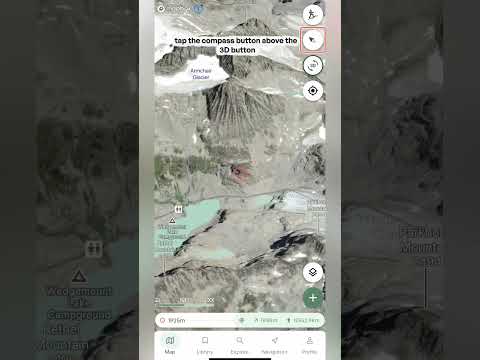
  • North button Tap the compass button above the 3D button to bring the map back to north. Handy after you've rotated the map and lost track of which way is which.
  • Centre on me Tap the location button once to centre the map on your location. Double tap it and the map turns to match the direction your phone is pointing, with the little blue arrow showing the way you're facing. Best for: working out which way to head when you're standing on the mountain.
Keep learning

Watch video

Picking your basemaps

Switch between the Terrain, Satellite and Adaptive basemaps, then choose a satellite imagery source: Low resolution satellite (free), or Maxar, Mapbox, Winter Beta or Recent Imagery with Pro.

Basemap style

  • Terrain The topographic map view, drawn like a traditional paper map. Best for: reading trails, roads and place names, and getting a feel for the lay of the land.
  • Satellite Satellite imagery of the ground. Best for: seeing what's actually out there, like snow cover, trees, rock and cliffs.
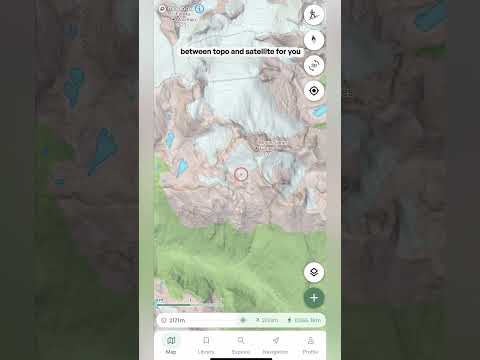
  • Adaptive Switches between the topographic map and satellite imagery for you. Tilt from 2D into 3D and it switches from topo to satellite, and in 2D it also switches to satellite once you zoom in far enough. See the short Adaptive video for a full breakdown.

Satellite imagery

  • Low resolution satellite Free satellite imagery with reduced detail. This is the satellite option on Basic, and a good way to get a feel for the terrain before you upgrade.
  • Maxar High-resolution satellite imagery. Pro.
  • Mapbox Balanced clarity and performance. Pro. Try Maxar and Mapbox side by side and see which you prefer for your area.
  • Winter Beta Seasonal, snow-focused imagery where available, still in beta. Pro.
  • Recent Imagery Imagery from the last 30 days, refreshed daily. Pro.

Contour lines

  • Contour lines Turn this on to display contour lines over satellite imagery. Each line joins points at the same elevation, so lines close together mean steep ground and lines far apart mean gentle ground. Best for: reading the shape of the terrain, like ridges and gullies, when you're on a satellite view.

‍

Watch video

Adaptive Basemap

Adaptive switches between the topographic map and satellite imagery automatically. Tilt from 2D into 3D and it switches from topo to satellite, and in 2D it also switches to satellite once you zoom in far enough. This short video shows how it works and when to use it.

Adaptive switches between the topographic map and satellite imagery automatically. Tilt from 2D into 3D and it switches from topo to satellite, and in 2D it also switches to satellite once you zoom in far enough. This short video shows how it works and when to use it.

Watch video

Map controls & 3d in Outmap

Tilt, rotate and zoom the map to see terrain the way you'll actually encounter it, not just from above. Then learn the buttons that bring you back to north or centre the map on where you are.

Moving around in 3D

  • 3D button Tap the 3D button to tilt the map into 3D. Best for: a quick way into 3D without any gestures.
  • Tilt Swipe up or down with two fingers to tilt the map up and down. Best for: seeing how steep a slope really is, which is hard to judge from straight above.
  • Rotate Twist with two fingers, moving one up and the other down, as if you're spinning the map. Best for: looking at a slope from every side.
  • Zoom Pinch to zoom out, and spread your fingers to zoom in.
  • North button Tap the compass button above the 3D button to bring the map back to north. Handy after you've rotated the map and lost track of which way is which.
  • Centre on me Tap the location button once to centre the map on your location. Double tap it and the map turns to match the direction your phone is pointing, with the little blue arrow showing the way you're facing. Best for: working out which way to head when you're standing on the mountain.
Watch video

Scout any Objective

Tap any objective on the map, or drop your own waypoint, to get a full profile: how far away it is, its coordinates, sun and moon times, a written description and a forecast for that exact spot. Then create a route straight there.

There are three ways in: tap an objective on the map, search for it, or drop your own waypoint. Whichever you choose, a panel slides up from the bottom with everything about that spot. Drag it up to see more.

The header

  • Name, type and elevation The name, its height above sea level, and a label for what it is when it has one, such as Alpine Hut.
  • To you How it compares to where you are right now: the height difference, the distance, and the bearing to get there. The T next to the bearing means true north. Best for: a quick sense of how far and how high an objective is from where you're standing.

Details tab

  • Location The exact coordinates, with the datum shown underneath. Tap the copy icon to copy them in one tap. Best for: sending a precise location to a friend, or pasting it into another app.
  • Local time, timezone and elevation The time there, its timezone and its height. Handy when you're planning a trip somewhere in a different timezone.
  • Nearby The closest town or area, so you know roughly where the spot is.
  • Open in mapping application Opens the location in another maps app on your phone, which is handy for getting driving directions to the trailhead.
  • Sun & Moon Sunrise and sunset, first light (dawn) and last light (dusk), plus the moon's illumination and direction, and moonrise and moonset. Sunrise, sunset, moonrise and moonset also show the compass direction they happen in. Best for: timing a dawn start, knowing how much daylight you really have, and judging how bright the night will be.

Description tab

  • AI-generated description A written overview of the objective: what it is, who looks after it, what's there, and any rules or reservations that apply. For a hut, for example, it covers things like capacity, amenities and whether you need to book. Best for: getting the practical details before you dig into maps and forecasts. Available on marked objectives, not on waypoints you drop yourself. AI descriptions are part of Outmap Pro.

Weather tab

  • Right now The current conditions: temperature, snow or rain, and wind. The forecast is provided by AlpineConditions, and the info icon tells you more about the source.
  • Daily forecast A card for each day showing the high and low temperature, expected rain or snowfall, and wind with its direction and gusts. Swipe sideways to see more days, up to 16 days ahead.
  • Coming up (next 36h) An hour-by-hour look at the next day and a half. Swipe sideways to scroll through the hours. Best for: picking the best window to be up high.
  • The charts Scroll down for charts of precipitation (rain in millimetres and snow in centimetres), snow depth, temperature, wind and gusts, freezing level, visibility, cloud cover, and lightning probability. The freezing level chart shows a line for the objective's own elevation, so you can see when it's below freezing. The charts can also show recent historical conditions alongside the forecast, so you can see what the weather has been doing as well as what's coming.

Actions

  • Save Saves it to your library so you can find it again later. Because everything syncs, it shows up in both the web app and the mobile app.
  • Share Lets you send it to someone else, so they can see exactly the spot you're looking at.
  • Create Route Opens the route planner so you can go straight from "that looks good" to plotting a line. Choose Snap to follow existing trails or Straight to draw straight lines, and use the undo button if you make a mistake. Your ascent, descent, steepness and distance update as you go. Tap Save when you're happy, or Cancel to start over.

Dropping your own waypoint

  • Add a waypoint Tap the plus button on the map and choose Add a waypoint to place a pin anywhere, not just on marked objectives.
  • What you get A panel titled with the nearest town, with a Details tab and a Weather tab for that exact spot, plus Save, Share and Create Route. Best for: checking the weather for a col, a campsite or a line that isn't marked on the map.
Tip:  descriptions are AI-generated, so treat them as a starting point and double-check important details like reservations and rules with the official source before you go. The forecast is for that exact spot, not the nearest town, so it can be very different from what you see in a valley forecast.