
Mountain Biking Activity Layer
Choosing your activities
- Open the activity selector On the map, tap the activity button at the top right (it shows a small number for how many activities are selected). A panel called Map content opens with the heading "Select the activities you want to see." Pick from Mountain Bike, Hike, Ski, Climb and Trail Running.
- Pick more than one You can select several activities at once. The number on the button updates to show how many are on, and tapping a selected activity again turns it off. Best for: trips that mix activities, like hiking in and skiing out.
- What it changes Your selection decides what shows up on the map, and what Outmap suggests when you start a new route or waypoint. Best for: keeping the map focused on the activity you're planning, so it isn't cluttered with things you don't need.
The Mountain Bike layer
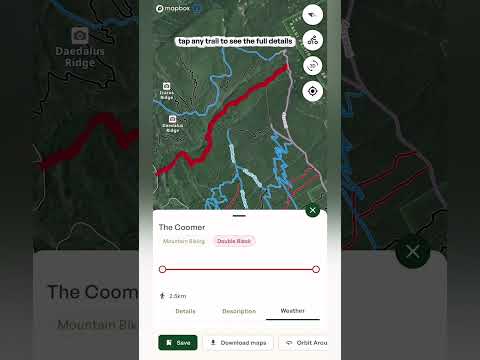
- Every trail in your area All the trails around you are color-coded by difficulty, from beginner-friendly routes through to the most technical lines. Best for: finding a trail at your level, or the next step up.
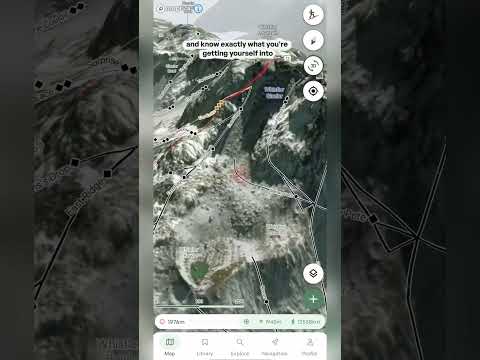
- Trail details Tap any trail to see its distance, elevation profile and gradient, so you know exactly what you're getting into before you leave the house.
- 3D terrain Use the 3D terrain layers to view a trail from above and spot the climbs, descents and technical sections before you get there. Best for: scoping out a new trail, or planning a big ride.
- Weather Check the forecast for the exact trail location for the next 36 hours.
- Offline maps Download an offline map of the area so you always have navigation, even without signal. Offline maps are a Pro feature in the mobile app. Best for: remote trails where you won't have any service.
- Trail runners The same layer works just as well if you run. Use it to find and plan your next trail run.
Using the layers together
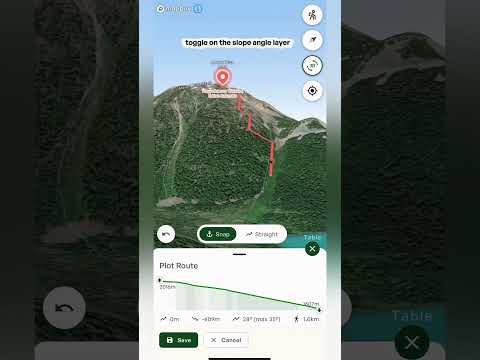
- Combine with other layers Every activity layer works with the other layers on the map. Try it with Slope angle (Pro) to see how steep the terrain is, or with the Heatmap layers to see where people actually go. Best for: getting the full picture of an area before you choose a line.
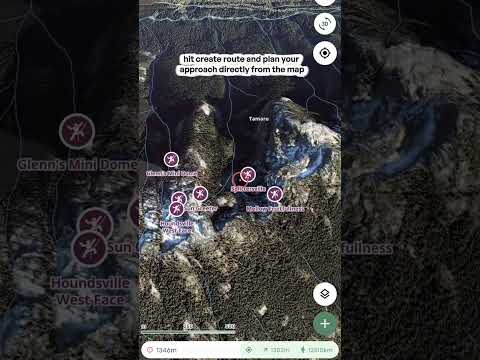
- Plan your own route Whichever activity you choose, you can build your own route with the route planning tool. See Plotting a route.
- Details on tap On every activity layer you can tap a trail, run, route or crag to see its details, and each one comes with a 36-hour mountain forecast for that exact spot.
Tip: you can change your activities at any time, so switch them as you plan different trips.
Important: the activity layers show you where runs, routes, trails and crags are, not whether they are safe on the day. Conditions change, so check the Avalanche forecast and the weather before you go, and always rely on your own training and judgment, especially in the backcountry.