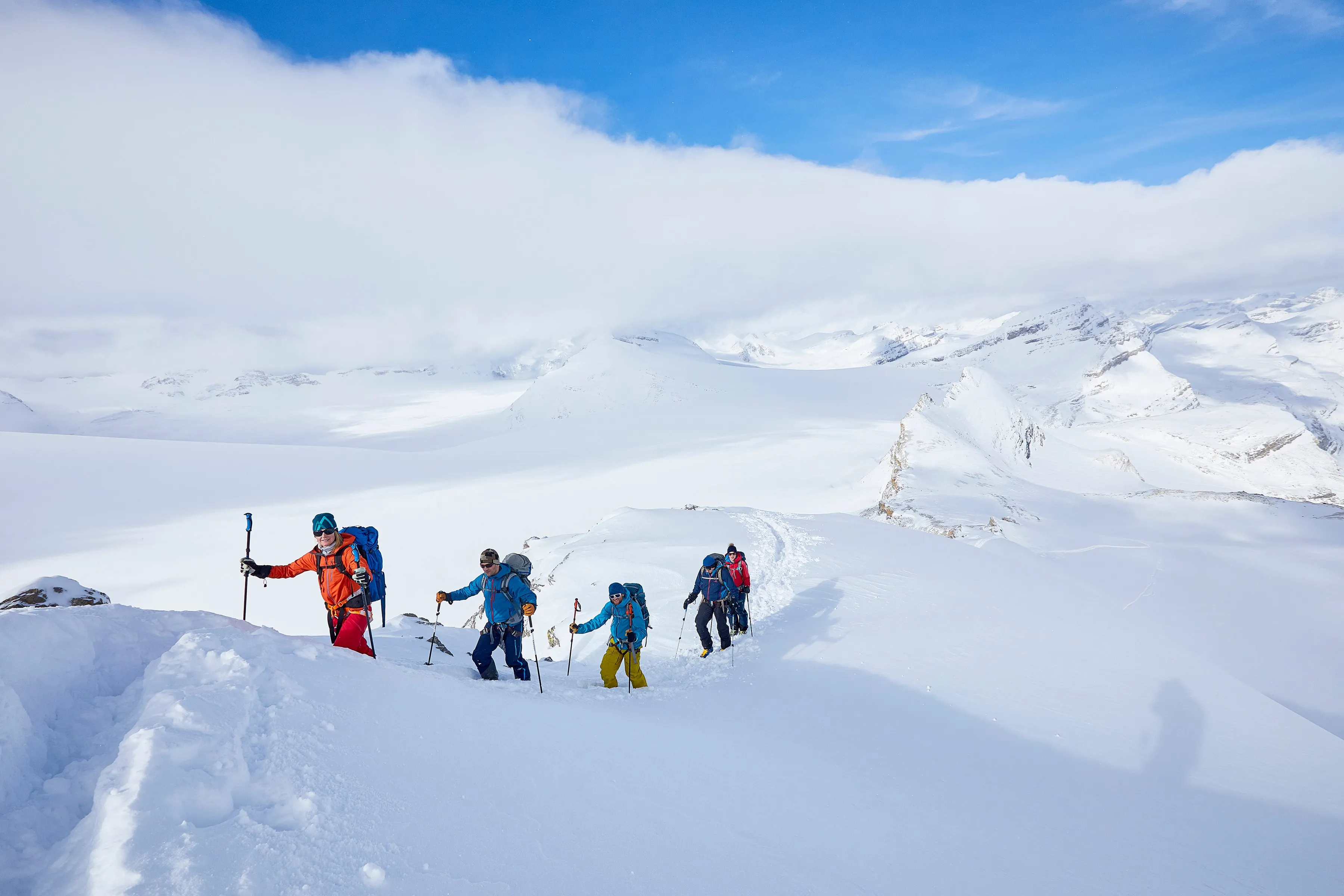

Skiing Activity layer

Choosing your activities

  • Open the activity selector On the map, tap the activity button at the top right (it shows a small number for how many activities are selected). A panel called Map content opens with the heading "Select the activities you want to see." Pick from Mountain Bike, Hike, Ski, Climb and Trail Running.
  • Pick more than one You can select several activities at once. The number on the button updates to show how many are on, and tapping a selected activity again turns it off. Best for: trips that mix activities, like hiking in and skiing out.
  • What it changes Your selection decides what shows up on the map, and what Outmap suggests when you start a new route or waypoint. Best for: keeping the map focused on the activity you're planning, so it isn't cluttered with things you don't need.

The Ski layer

  • Resort skiing Every lift and run at your favourite resorts appears on the map. You can see how a resort is laid out, where the lifts go and which runs come off them, before you ever get there. Best for: working out which runs suit you and your group.
  • Backcountry skiing Alongside the resorts you'll see a large range of backcountry ski touring routes. Browse the routes in your favourite areas to see what's already been mapped, then tap one for the details. Best for: finding a tour in an area you don't know yet.
  • Steepness at any point Tap any marked run or route to see its gradient profile, which shows how steep it is at every point along the way. It takes the guesswork out of a run you haven't skied before. Best for: knowing how steep a pitch is before you drop in.
  • Ski touring route details Tap a touring route to see its gradient, aspect, distance and estimated journey time. You also get a 36-hour mountain forecast for that exact location, not the nearest town. Best for: picking a tour that fits the day you have and the weather that's coming.
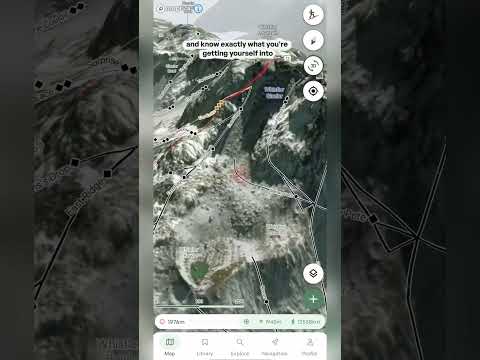
  • 3D terrain Tilt the map into 3D to look at the terrain the way you'll see it on the mountain. You can inspect the slopes and know exactly what you're getting yourself into before you commit. Best for: checking the steep sections, and what sits above and below them, from your couch.

Using the layers together

  • Combine with other layers Every activity layer works with the other layers on the map. Try it with Slope angle (Pro) to see how steep the terrain is, or with the Heatmap layers to see where people actually go. Best for: getting the full picture of an area before you choose a line.
  • Plan your own route Whichever activity you choose, you can build your own route with the route planning tool. See Plotting a route.
  • Details on tap On every activity layer you can tap a trail, run, route or crag to see its details, and each one comes with a 36-hour mountain forecast for that exact spot.
Tip:  you can change your activities at any time, so switch them as you plan different trips.
Important:  the activity layers show you where runs, routes, trails and crags are, not whether they are safe on the day. Conditions change, so check the Avalanche forecast and the weather before you go, and always rely on your own training and judgment, especially in the backcountry.
‍

‍

Keep learning

Watch video

Customise your Settings and Privacy

Set your units, choose a coordinate format, and decide whether your recorded activities stay private or help build anonymous community heatmaps.

Preferences

  • Units Choose how Outmap shows distance, speed and pressure.
    • Metric:  uses kilometres, km/h and kPa.
    • Imperial:  switches everything over to the imperial equivalents.
    It applies across the whole app, so distances, elevations and speeds all follow the same system. Best for: seeing numbers in the units you already think in, so a 12 km route or a 1,200 m climb means something at a glance.
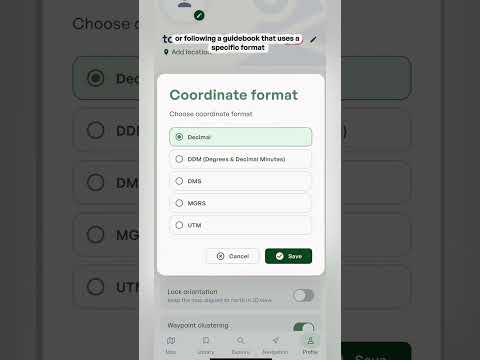
  • Coordinate format Choose how locations are written.
    • Decimal (the default):  a single pair of numbers, like 49.2827, -123.1207.
    • DMS:  splits each number into degrees, minutes and seconds.
    • MGRS:  a grid system that gives a position in metres across a map grid.
    • UTM:  another grid system that gives a position in metres across a map grid.
    Every format points to the exact same spot, and Outmap uses WGS84, the same standard as GPS and most apps, so your coordinates will match what your phone or watch shows. Best for: sharing a location with a rescue team, or following a guidebook that uses a specific format. Pick whichever the other person or the book expects.
  • Bearing reference Choose between true north and magnetic north for your bearings.
    • True north:  points to the North Pole.
    • Magnetic north:  is where a compass needle points.
    The two can be several degrees apart depending on where you are. Best for: matching a physical compass. If you navigate with one, pick magnetic north so the bearings in Outmap line up with what your compass shows.
  • Lock orientation Keeps the map pointing north in 2D view, so it doesn't rotate as you turn or move. Best for: always knowing which way is north at a glance, and matching the map to the terrain in front of you without it spinning.
  • Waypoint clustering Groups nearby waypoints into a single marker when you're zoomed out, so the map doesn't fill up with pins. Zoom in and they spread back out. Best for: busy areas with lots of waypoints close together.
  • Contour lines Shows terrain contour lines on top of satellite imagery. Each line joins points at the same elevation, so lines close together mean steep ground and lines far apart mean gentle ground. Best for: reading the shape of the terrain, like ridges, gullies and how steep a slope is, while you're on a satellite view.
  • Keep screen awake Stops your phone's display from turning off while Outmap is open. Best for: navigating on the go, so the screen doesn't lock while you're checking the map. It does use more battery, so switch it off when you don't need it.
  • Metric:  uses kilometres, km/h and kPa.
  • Imperial:  switches everything over to the imperial equivalents.
  • Decimal (the default):  a single pair of numbers, like 49.2827, -123.1207.
  • DMS:  splits each number into degrees, minutes and seconds.
  • MGRS:  a grid system that gives a position in metres across a map grid.
  • UTM:  another grid system that gives a position in metres across a map grid.
  • True north:  points to the North Pole.
  • Magnetic north:  is where a compass needle points.

Tracking

  • Stats in notifications Shows your live stats in a notification while you're tracking an activity. Best for: checking distance and time at a glance without opening the app.

Privacy

  • Recorded activity privacy Choose whether your new recorded activities stay private, or can be used to build anonymous community heatmaps.
    • Private:  only you see your tracks.
    • Opted in:  your activity can be used to build anonymous community heatmaps.
    You can change this at any time.
  • Private:  only you see your tracks.
  • Opted in:  your activity can be used to build anonymous community heatmaps.
Tip:  play around with these settings to find what works best for you.

‍

‍

Watch video

Skiing Activity layer

See every lift and run at your favourite resorts, plus a large range of backcountry touring routes, each with its own gradient profile.

Choosing your activities

  • Open the activity selector On the map, tap the activity button at the top right (it shows a small number for how many activities are selected). A panel called Map content opens with the heading "Select the activities you want to see." Pick from Mountain Bike, Hike, Ski, Climb and Trail Running.
  • Pick more than one You can select several activities at once. The number on the button updates to show how many are on, and tapping a selected activity again turns it off. Best for: trips that mix activities, like hiking in and skiing out.
  • What it changes Your selection decides what shows up on the map, and what Outmap suggests when you start a new route or waypoint. Best for: keeping the map focused on the activity you're planning, so it isn't cluttered with things you don't need.

The Ski layer

  • Resort skiing Every lift and run at your favourite resorts appears on the map. You can see how a resort is laid out, where the lifts go and which runs come off them, before you ever get there. Best for: working out which runs suit you and your group.
  • Backcountry skiing Alongside the resorts you'll see a large range of backcountry ski touring routes. Browse the routes in your favourite areas to see what's already been mapped, then tap one for the details. Best for: finding a tour in an area you don't know yet.
  • Steepness at any point Tap any marked run or route to see its gradient profile, which shows how steep it is at every point along the way. It takes the guesswork out of a run you haven't skied before. Best for: knowing how steep a pitch is before you drop in.
  • Ski touring route details Tap a touring route to see its gradient, aspect, distance and estimated journey time. You also get a 36-hour mountain forecast for that exact location, not the nearest town. Best for: picking a tour that fits the day you have and the weather that's coming.
  • 3D terrain Tilt the map into 3D to look at the terrain the way you'll see it on the mountain. You can inspect the slopes and know exactly what you're getting yourself into before you commit. Best for: checking the steep sections, and what sits above and below them, from your couch.

Using the layers together

  • Combine with other layers Every activity layer works with the other layers on the map. Try it with Slope angle (Pro) to see how steep the terrain is, or with the Heatmap layers to see where people actually go. Best for: getting the full picture of an area before you choose a line.
  • Plan your own route Whichever activity you choose, you can build your own route with the route planning tool. See Plotting a route.
  • Details on tap On every activity layer you can tap a trail, run, route or crag to see its details, and each one comes with a 36-hour mountain forecast for that exact spot.
Tip:  you can change your activities at any time, so switch them as you plan different trips.
Important:  the activity layers show you where runs, routes, trails and crags are, not whether they are safe on the day. Conditions change, so check the Avalanche forecast and the weather before you go, and always rely on your own training and judgment, especially in the backcountry.
‍

‍

Watch video

Hiking Activity Layer

Find established hiking trails with their distance and elevation profile, or plot your own route to a peak with no marked trail.

Choosing your activities

  • Open the activity selector On the map, tap the activity button at the top right (it shows a small number for how many activities are selected). A panel called Map content opens with the heading "Select the activities you want to see." Pick from Mountain Bike, Hike, Ski, Climb and Trail Running.
  • Pick more than one You can select several activities at once. The number on the button updates to show how many are on, and tapping a selected activity again turns it off. Best for: trips that mix activities, like hiking in and skiing out.
  • What it changes Your selection decides what shows up on the map, and what Outmap suggests when you start a new route or waypoint. Best for: keeping the map focused on the activity you're planning, so it isn't cluttered with things you don't need.

The Hike layer

  • Trail network The hiking trails layer shows established routes, with details like distance and elevation profile. Tap a trail to see them. Best for: finding a proven route in an area you don't know.
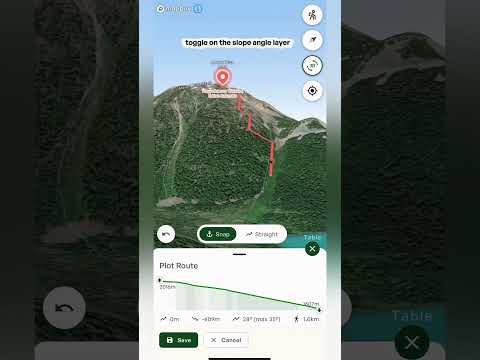
  • Going off trail If you see a peak with no marked trail, drop a waypoint on it, tap Create Route, then add points along the line you'd like to take. Popular apps mostly show routes thousands of people already follow, and this lets you build your own. Best for: escaping the crowds and finding routes nobody else is on.
  • Snap or Straight While you plot, choose Snap to follow existing trails or Straight to draw straight lines between your points. Use the undo button if you make a mistake. Best for: mixing marked trails with off-trail sections on the same route.
  • Staying within your limits Switch on the Slope angle layer (a Pro layer) alongside your route to see whether any part of it is steeper than you want to take on. Best for: making sure your line isn't steeper than your group is comfortable with.
  • Full route stats Once your route is plotted you get the elevation profile, distance, estimated travel time and pace, and the aspects your route crosses. There's also a 36-hour forecast for the route's exact location. Best for: knowing how long the day will be, and what the weather will do, before you leave.

Using the layers together

  • Combine with other layers Every activity layer works with the other layers on the map. Try it with Slope angle (Pro) to see how steep the terrain is, or with the Heatmap layers to see where people actually go. Best for: getting the full picture of an area before you choose a line.
  • Plan your own route Whichever activity you choose, you can build your own route with the route planning tool. See Plotting a route.
  • Details on tap On every activity layer you can tap a trail, run, route or crag to see its details, and each one comes with a 36-hour mountain forecast for that exact spot.
Tip:  you can change your activities at any time, so switch them as you plan different trips.
Important:  the activity layers show you where runs, routes, trails and crags are, not whether they are safe on the day. Conditions change, so check the Avalanche forecast and the weather before you go, and always rely on your own training and judgment, especially in the backcountry.
‍

‍

Watch video

Climbing Activity layer

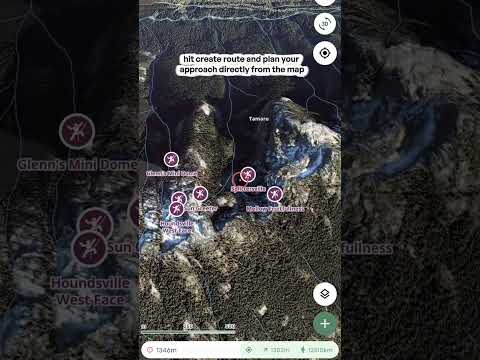
Browse hundreds of crags by name, tap one for its details and local forecast, then plot your approach straight from the map.

Choosing your activities

  • Open the activity selector On the map, tap the activity button at the top right (it shows a small number for how many activities are selected). A panel called Map content opens with the heading "Select the activities you want to see." Pick from Mountain Bike, Hike, Ski, Climb and Trail Running.
  • Pick more than one You can select several activities at once. The number on the button updates to show how many are on, and tapping a selected activity again turns it off. Best for: trips that mix activities, like hiking in and skiing out.
  • What it changes Your selection decides what shows up on the map, and what Outmap suggests when you start a new route or waypoint. Best for: keeping the map focused on the activity you're planning, so it isn't cluttered with things you don't need.

The Ski layer

  • Resort skiing Every lift and run at your favourite resorts appears on the map. You can see how a resort is laid out, where the lifts go and which runs come off them, before you ever get there. Best for: working out which runs suit you and your group.
  • Backcountry skiing Alongside the resorts you'll see a large range of backcountry ski touring routes. Browse the routes in your favourite areas to see what's already been mapped, then tap one for the details. Best for: finding a tour in an area you don't know yet.
  • Steepness at any point Tap any marked run or route to see its gradient profile, which shows how steep it is at every point along the way. It takes the guesswork out of a run you haven't skied before. Best for: knowing how steep a pitch is before you drop in.
  • Ski touring route details Tap a touring route to see its gradient, aspect, distance and estimated journey time. You also get a 36-hour mountain forecast for that exact location, not the nearest town. Best for: picking a tour that fits the day you have and the weather that's coming.
  • 3D terrain Tilt the map into 3D to look at the terrain the way you'll see it on the mountain. You can inspect the slopes and know exactly what you're getting yourself into before you commit. Best for: checking the steep sections, and what sits above and below them, from your couch.

The Hike layer

  • Trail network The hiking trails layer shows established routes, with details like distance and elevation profile. Tap a trail to see them. Best for: finding a proven route in an area you don't know.
  • Going off trail If you see a peak with no marked trail, drop a waypoint on it, tap Create Route, then add points along the line you'd like to take. Popular apps mostly show routes thousands of people already follow, and this lets you build your own. Best for: escaping the crowds and finding routes nobody else is on.
  • Snap or Straight While you plot, choose Snap to follow existing trails or Straight to draw straight lines between your points. Use the undo button if you make a mistake. Best for: mixing marked trails with off-trail sections on the same route.
  • Staying within your limits Switch on the Slope angle layer (a Pro layer) alongside your route to see whether any part of it is steeper than you want to take on. Best for: making sure your line isn't steeper than your group is comfortable with.
  • Full route stats Once your route is plotted you get the elevation profile, distance, estimated travel time and pace, and the aspects your route crosses. There's also a 36-hour forecast for the route's exact location. Best for: knowing how long the day will be, and what the weather will do, before you leave.

The Climb layer

  • Crags across the map Hundreds of crags appear on the map with their names, giving you an instant overview of what's out there in any area. They range from accessible crags for beginners to harder lines for experienced climbers. Best for: finding new spots, whether you sport climb, trad climb or boulder.
  • Crag details Tap any crag to see its info and description, plus the weather forecast for that exact location. Best for: checking the conditions at a specific crag, not just the nearest town.
  • Plan the approach Tap Create Route to plot your walk in straight from the map. Your ascent, descent and distance update as you go, so you know how long the approach is. Best for: working out how to get to a crag you haven't been to before.
  • 3D imagery Tilt into 3D to see the crag and the terrain around it before you leave the house. Best for: understanding what you're walking into on the approach.

The Mountain Bike layer

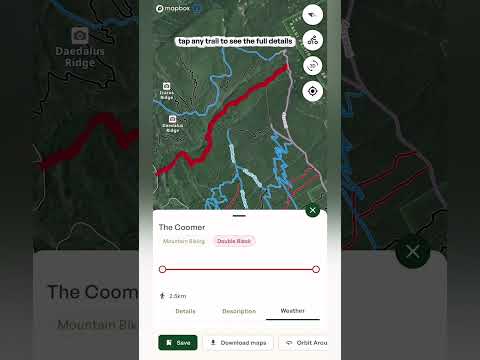
  • Every trail in your area All the trails around you are color-coded by difficulty, from beginner-friendly routes through to the most technical lines. Best for: finding a trail at your level, or the next step up.
  • Trail details Tap any trail to see its distance, elevation profile and gradient, so you know exactly what you're getting into before you leave the house.
  • 3D terrain Use the 3D terrain layers to view a trail from above and spot the climbs, descents and technical sections before you get there. Best for: scoping out a new trail, or planning a big ride.
  • Weather Check the forecast for the exact trail location for the next 36 hours.
  • Offline maps Download an offline map of the area so you always have navigation, even without signal. Offline maps are a Pro feature in the mobile app. Best for: remote trails where you won't have any service.
  • Trail runners The same layer works just as well if you run. Use it to find and plan your next trail run.

Using the layers together

  • Combine with other layers Every activity layer works with the other layers on the map. Try it with Slope angle (Pro) to see how steep the terrain is, or with the Heatmap layers to see where people actually go. Best for: getting the full picture of an area before you choose a line.
  • Plan your own route Whichever activity you choose, you can build your own route with the route planning tool. See Plotting a route.
  • Details on tap On every activity layer you can tap a trail, run, route or crag to see its details, and each one comes with a 36-hour mountain forecast for that exact spot.
Tip: you can change your activities at any time, so switch them as you plan different trips.
Important: the activity layers show you where runs, routes, trails and crags are, not whether they are safe on the day. Conditions change, so check the Avalanche forecast and the weather before you go, and always rely on your own training and judgment, especially in the backcountry.
Watch video

Mountain Biking Activity Layer

Every trail around you is color-coded by difficulty, from beginner-friendly to the most technical lines, with distance, elevation and gradient for each.

Choosing your activities

  • Open the activity selector On the map, tap the activity button at the top right (it shows a small number for how many activities are selected). A panel called Map content opens with the heading "Select the activities you want to see." Pick from Mountain Bike, Hike, Ski, Climb and Trail Running.
  • Pick more than one You can select several activities at once. The number on the button updates to show how many are on, and tapping a selected activity again turns it off. Best for: trips that mix activities, like hiking in and skiing out.
  • What it changes Your selection decides what shows up on the map, and what Outmap suggests when you start a new route or waypoint. Best for: keeping the map focused on the activity you're planning, so it isn't cluttered with things you don't need.

The Mountain Bike layer

  • Every trail in your area All the trails around you are color-coded by difficulty, from beginner-friendly routes through to the most technical lines. Best for: finding a trail at your level, or the next step up.
  • Trail details Tap any trail to see its distance, elevation profile and gradient, so you know exactly what you're getting into before you leave the house.
  • 3D terrain Use the 3D terrain layers to view a trail from above and spot the climbs, descents and technical sections before you get there. Best for: scoping out a new trail, or planning a big ride.
  • Weather Check the forecast for the exact trail location for the next 36 hours.
  • Offline maps Download an offline map of the area so you always have navigation, even without signal. Offline maps are a Pro feature in the mobile app. Best for: remote trails where you won't have any service.
  • Trail runners The same layer works just as well if you run. Use it to find and plan your next trail run.

Using the layers together

  • Combine with other layers Every activity layer works with the other layers on the map. Try it with Slope angle (Pro) to see how steep the terrain is, or with the Heatmap layers to see where people actually go. Best for: getting the full picture of an area before you choose a line.
  • Plan your own route Whichever activity you choose, you can build your own route with the route planning tool. See Plotting a route.
  • Details on tap On every activity layer you can tap a trail, run, route or crag to see its details, and each one comes with a 36-hour mountain forecast for that exact spot.
Tip:  you can change your activities at any time, so switch them as you plan different trips.
Important:  the activity layers show you where runs, routes, trails and crags are, not whether they are safe on the day. Conditions change, so check the Avalanche forecast and the weather before you go, and always rely on your own training and judgment, especially in the backcountry.