
Slope angle layer
Turning it on
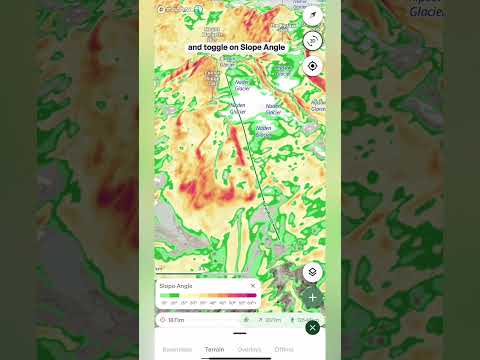
- Open the layers menu Tap the layers button on the map, go to the Terrain tab and tap Slope angle. To turn it off, tap it again. A small number on the Terrain tab shows how many terrain layers are switched on.
Reading the colors
- The scale A legend card appears on the map with a scale running from 10° to 60° and over. Match any patch of color on the map to the scale to read its steepness.
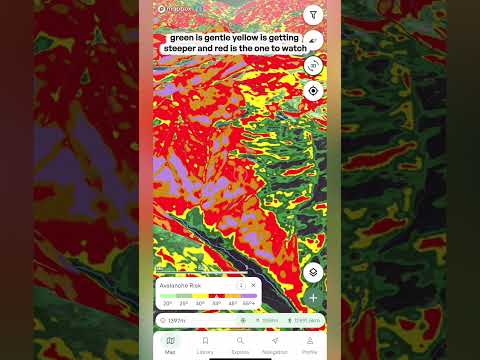
- From green to purple The gentlest slopes are green, then the colors warm up through yellow and orange, into red and pink as the terrain gets steep. Purple marks the steepest ground on the map, 60° and over, such as cliffs and rock faces.
- Slope angle vs Avalanche risk Slope angle shows steepness in small steps, so you can read the angle of any slope. Avalanche risk groups the same angles into a few key bands, so you can see the important range at a glance.
Controls
- Opacity slider The slider is located at the top of the Terrain layers menu. Drag it down to fade the colors so you can see the satellite imagery or topo map underneath, or up to make the angles stand out.
What it's good for
- Choosing a line See where the steep pitches are and where the terrain eases off, so you can pick a line that suits your group and the day.
- Planning the approach Find the gentler ground to travel on, and spot where your route has to cross steeper slopes.
- Pairing with other layers Use it with Slope aspect, Avalanche risk and the Avalanche forecast overlay to build a fuller picture of any slope before you go.