
Terrain Shade Layer
Turning it on
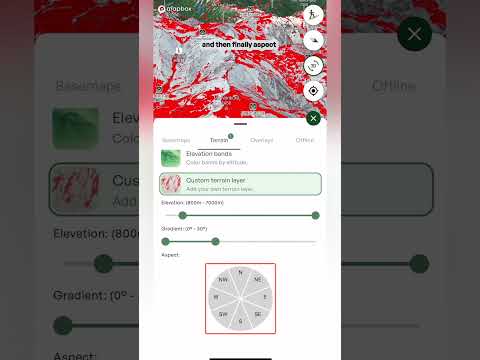
- Open the layers menu Tap the layers button on the map, go to the Terrain tab and tap Terrain shade. The description underneath reads "Sun shade by time of day and date." To turn it off, tap it again. A small number on the Terrain tab shows how many terrain layers are switched on.
The controls
- Date Pick the day you want to look at from the dropdown, which covers the month before and the month after today. The sun sits at a different angle as the season changes, so set this to the day of your trip. Best for: planning ahead, not just for today.
- Local time A slider covering the whole day, from 12 AM to 11:59 PM. Drag it to move to a different time and the shaded areas update. The light green part of the slider marks the hours of daylight. The time shown is local time at the spot you're looking at. Best for: finding out when a slope comes into the sun or drops into shade.
- Opacity slider At the top of the Terrain layers menu. Drag it down to fade the shading so you can see the terrain underneath.
What it's good for
- Snow quality Slopes that stay in shade tend to hold colder, drier snow, while slopes in the sun warm up. Check a slope at the time you'll be on it.
- Timing your day Work out when the sun reaches your objective, when a cold start will warm up, and when a slope will fall into shade again in the afternoon.
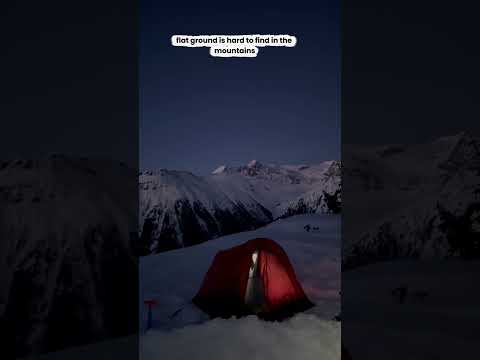
- Camp and break spots Find somewhere that gets the morning sun, or somewhere that stays shaded and cool.
- Photos and video See when the light will reach a face or a ridge, so you can plan when to be there.